Showing posts with label Pattern. Show all posts

Tuesday, November 03, 2009

Our Pattern Bank

Our Pattern BankAs mentioned clearly in wikipedia, the most basic patterns are based on repetition and periodicity. So, you guys don't need a huge file to get a great wallpaper for your image background or something, with just a tiny lil cute thing, then you repeate it with the help of photoshop ofcourse to cover all your work area. Voila.. You've seen earlier what I've done with that.

That's it and that's all! A single template, or cell, is combined with duplicates without change or modification.


Some of patterns samples you can download from the Recreating Patterns tut :


View Tutorial about Recreating Patterns or you can take a peep at Carbon Fiber Look tutorial to learn how to create and apply these such lovely things.

Do not forget to visit our Pattern Bank here too!

Enjoy and have a nice day!


Wednesday, October 28, 2009

Hell Fire - Remembering

Hell FireIn this photoshop tutorial, you will learn how to make the Fire effect while remembering this Creating Fire lesson that I wrote earlier and apply a series of layer styles.

Here are the steps :

1. Open your new blank document. Here I use 1024x768px, you can use smaller image for this if you want to.

2. Set your Foreground and Background color into Black and White by pressing the D key.

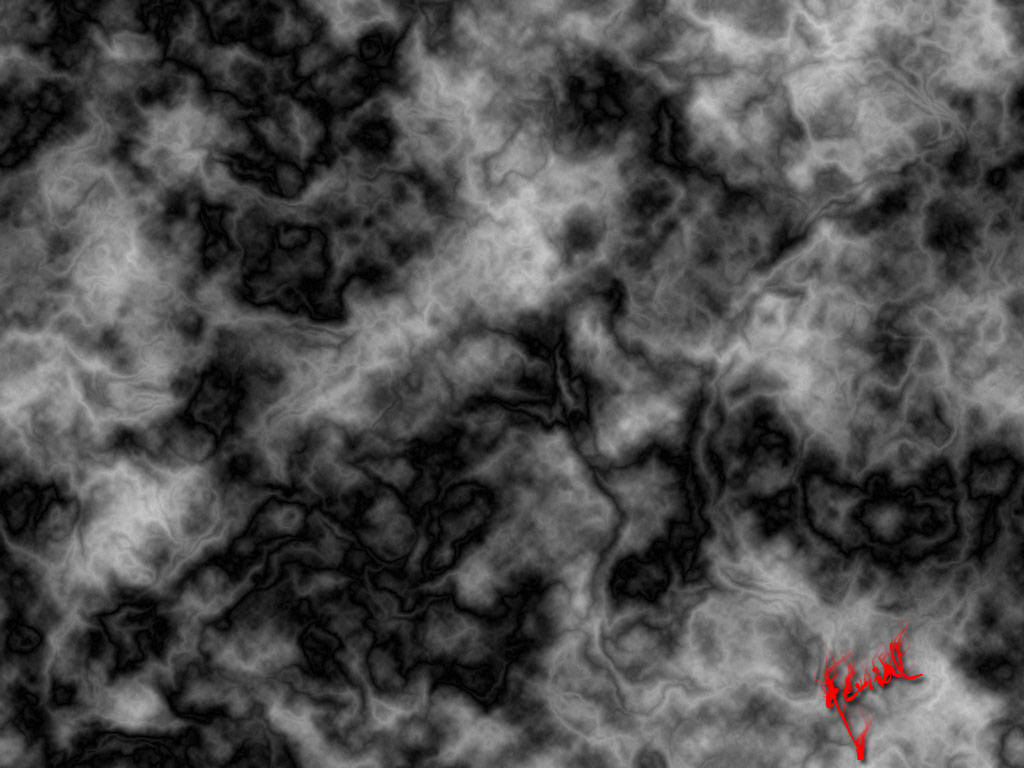
3. Go to Filter > Render > Clouds. Done? Apply the Difference Clouds by going to Filter > Render > Difference Clouds

Optional : Press Ctrl + F 12 times to get the Pattern like this ;


Hell Fire


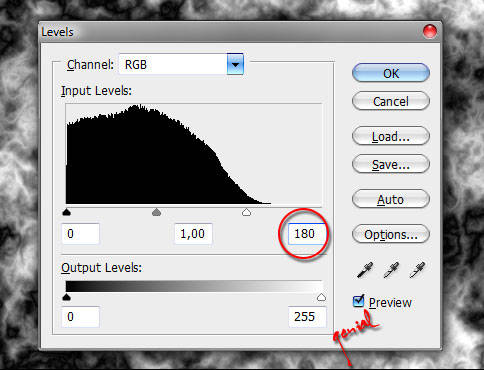
4. Now by pressing Ctrl + L to call Fire Layer Levels Histogram.


Hell Fire


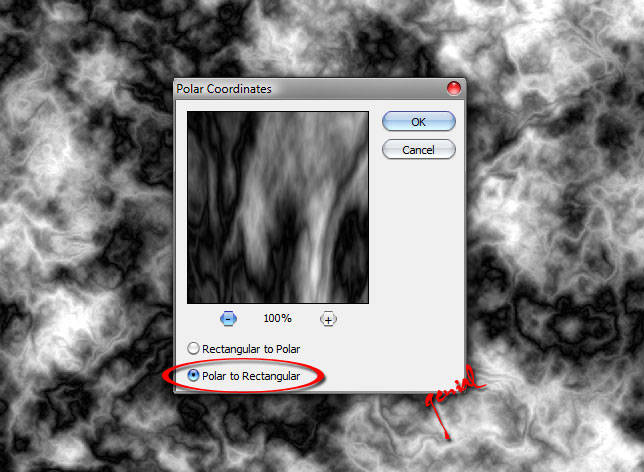
5. Still with your Background Layer selected, go to Filter > Distort > Polar Coordinates


Hell Fire


6. Flip the Canvas to Vertical by selecting Image > Rotate Canvas > Flip Vertical

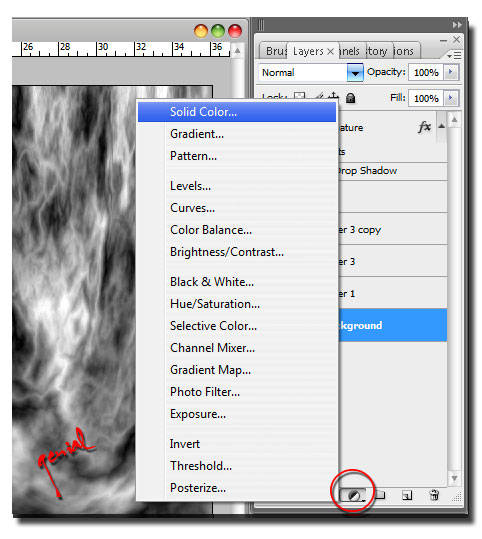
7. Add a color fire into your image. Click the Create new fill or adjustment layer in the bottom of your Palette Layer

Hell Fire


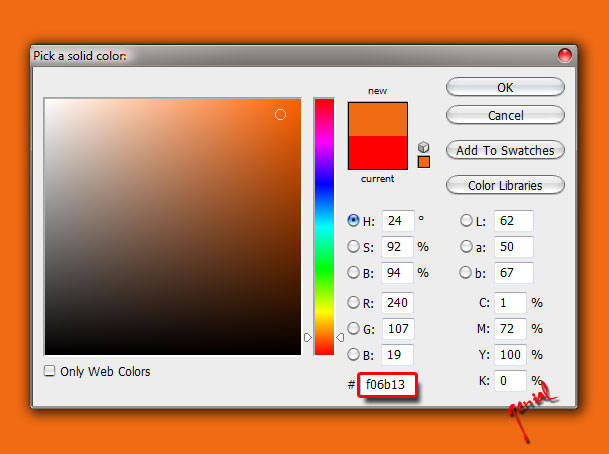
Fill it with #f06b13 - Solid Orange color


Hell Fire


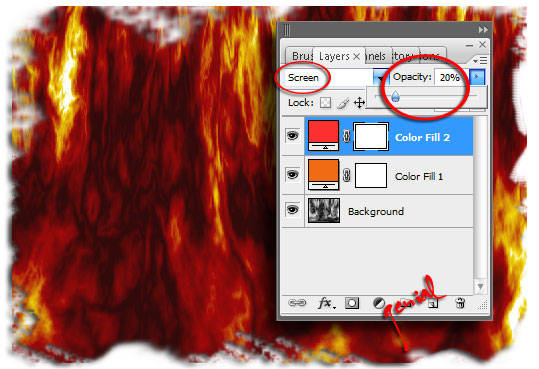
Repeat Step 7, but this time with this #FC3030 - solid Red color

8. Now's the tricky final part. Change the Blending Opacity for your solid Orange color from Normal into Color Burn and change the Blending Opacity for your solid Red color from Normal into Screen. Turn your Red color opacity from 100% to about 10-20%. Got it?!?!?


Hell Fire


Variations : This is optional. You are obviously allowed to adjust the wildness of the flames by applying, differing amounts of sharpening.

Simply click on the Fire Layer then select Filter > Sharpen > Unsharp Mask


Flatten Image when you are done. Keep Up your Good Work Doods!


Hell Fire


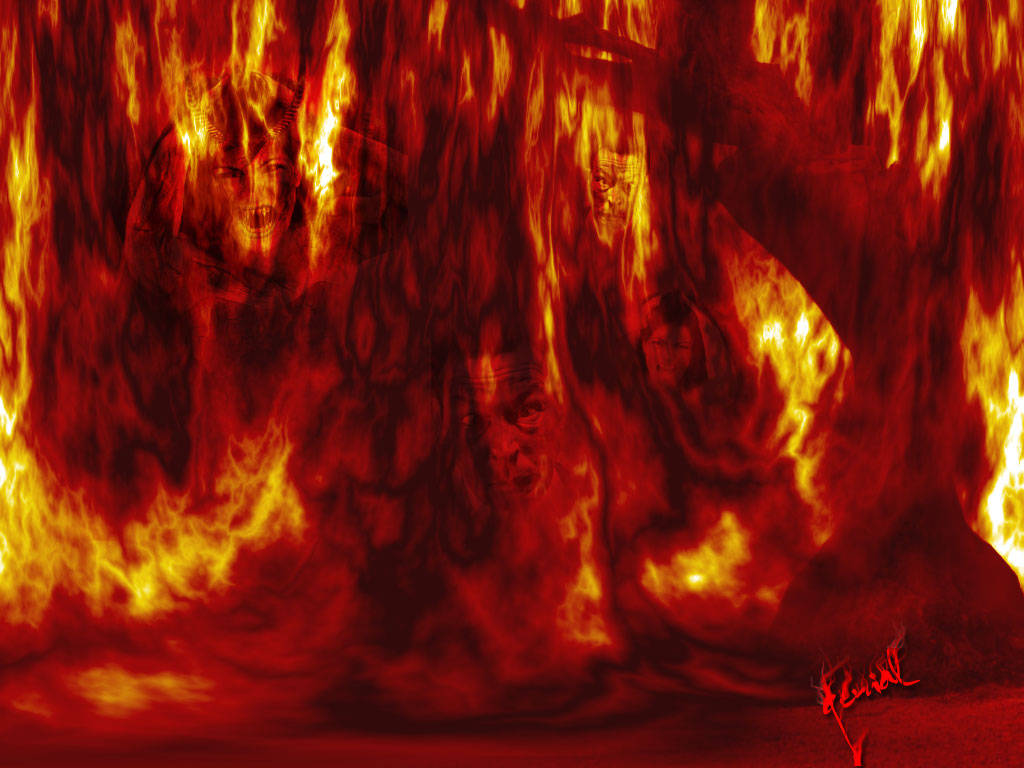
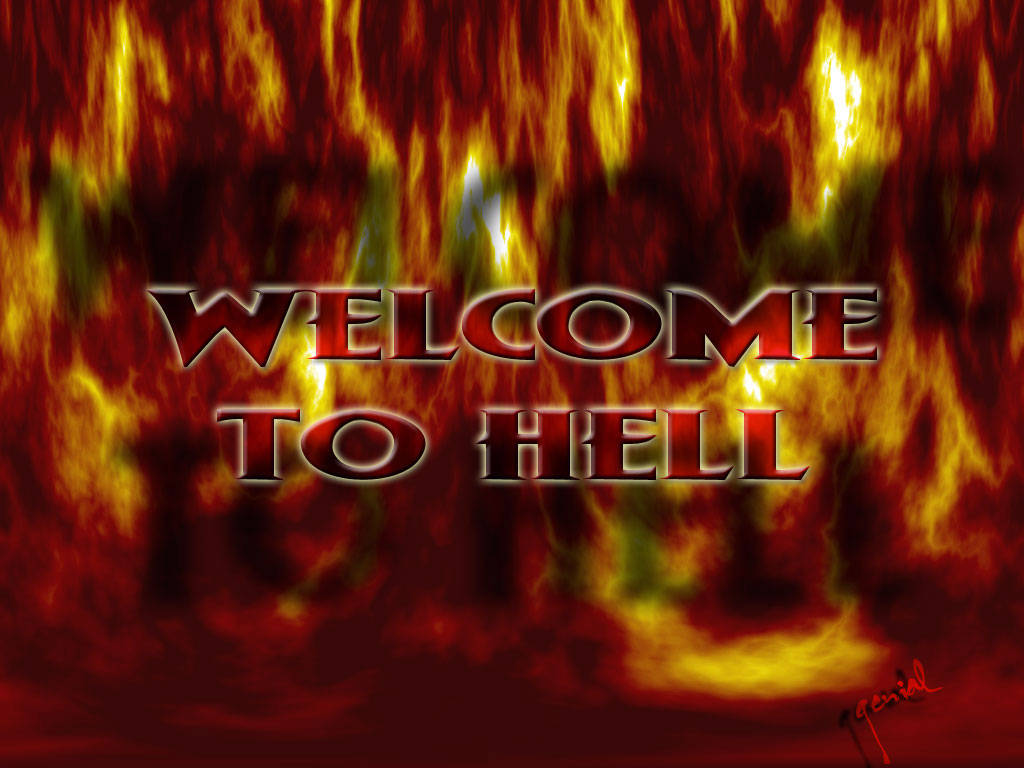
Other samples:


Hell Fire


Friday, October 23, 2009

Recreating Patterns

Recreating PatternsHve you doods ever wondered how to create an easy way in making a simple pattern or even the hard one in your beautiful magnifique application called Photoshop? Damn! Quite easy and it’s obviously fun.

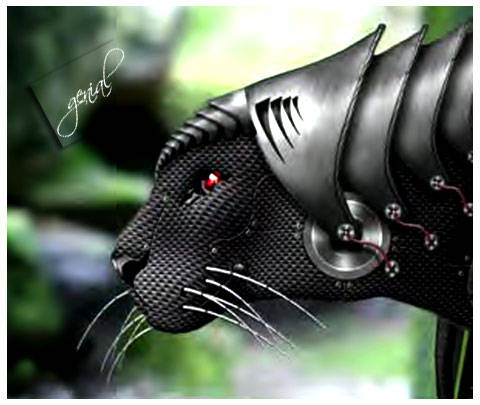
Remember about Carbon Fiber Look...?? The one that you use to create Tiger Mask??

I used this set for that pattern..


Recreating Patterns


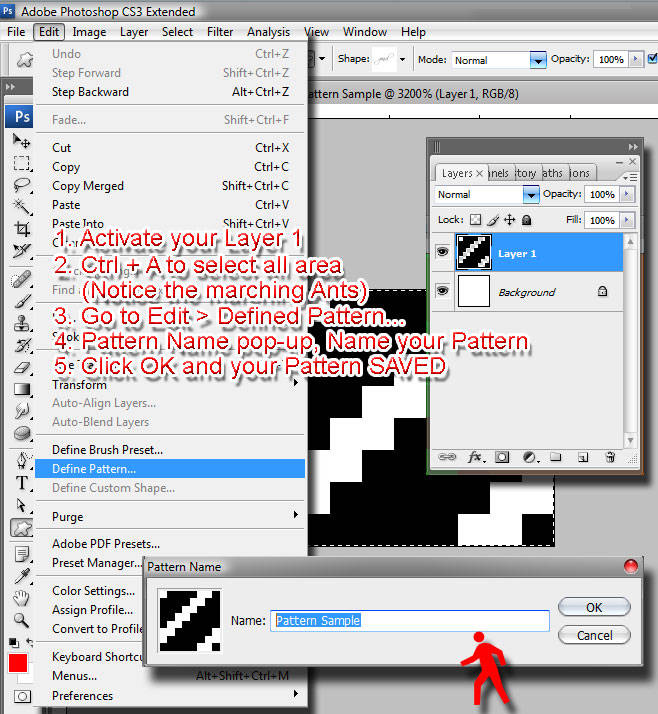
But now... This is the same way you save your work to become It can be use for any other circumstances, Diplacement Map for example... Let me show you how..

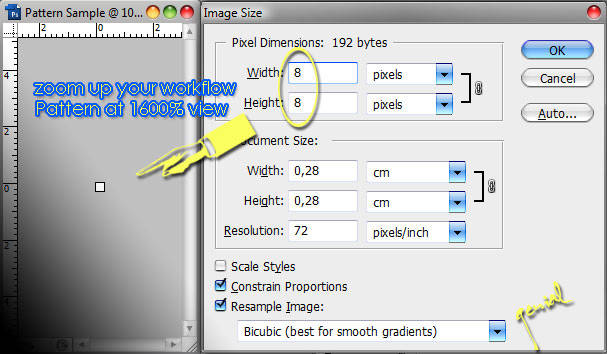
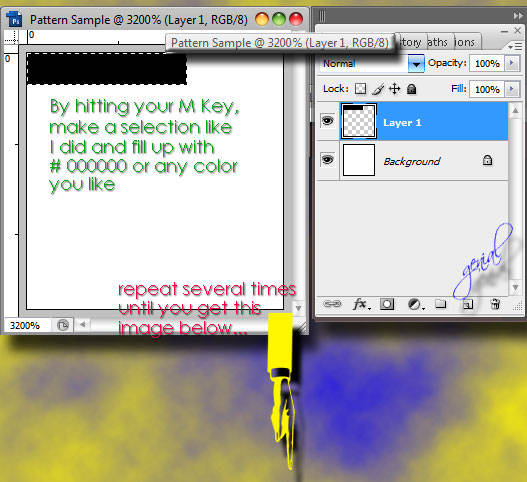
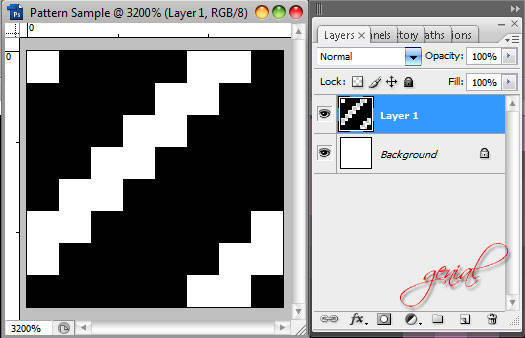
Fire up a new blank document. Better in small version, height and widht. Your creation here will duplicate itself to form your beautiful pattern on workflow later. I'm gonna use 8×8px canvas, zoomed 'em up and create a small pattern like this.


Recreating Patterns


Pattern at 3200% view


Recreating Patterns


Recreating Patterns


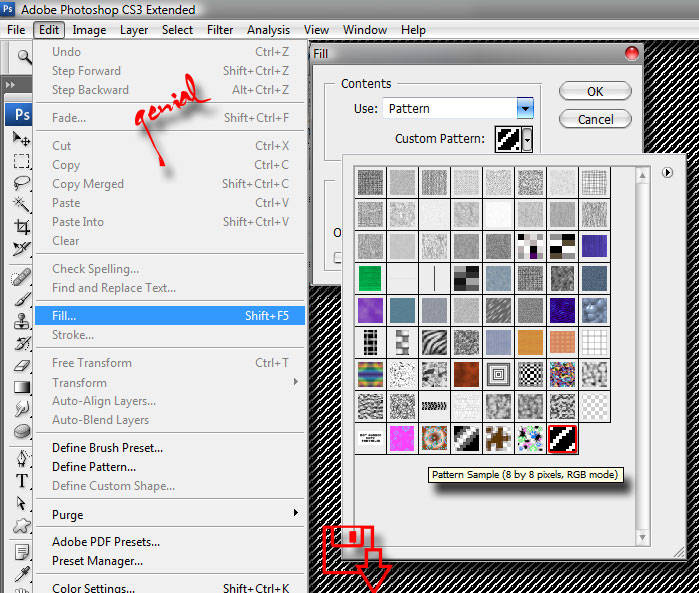
Using custom pattern

Create a new document after you close all your document you've created earlier. By pressing Ctrl + N to try out the custom pattern. Highlight or select your new canvas, press Shift + F5 to call the fill color box up or you can simply access it by entering menu Edit > Fill.


Recreating Patterns


Recreating Patterns


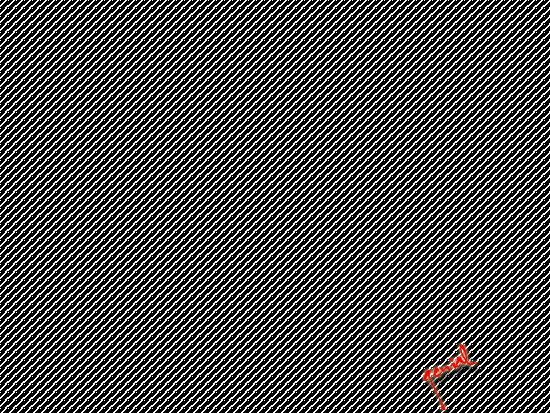
Here's your 550x413px Simple Pattern


Recreating Patterns


Some of patterns samples you can download from the lesson this time are moved out here!

Enjoy and have a nice weekend!

Friday, July 24, 2009

Carbon Fiber Look

genial Carbon Fiber LookToday we're gonna make a Carbon Fiber pattern in easiest way to find.
That's only need three basic steps to do.

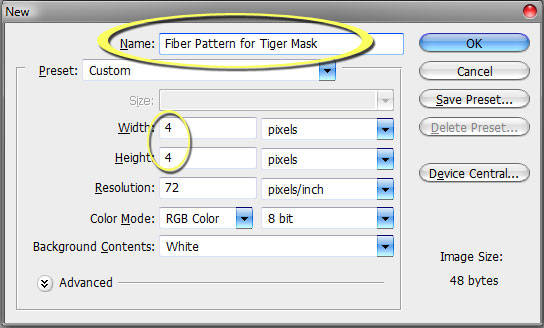
First. Open your workflow in about 4x4px in width and height.
That's small file, I know. Just shut up and see...


Here's the preview;


genial on Carbon Fiber Look


OK... First thing we'll gonna do is...
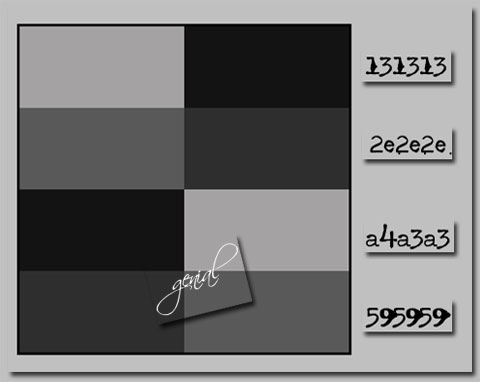
Select the colors and fill as shown below.


genial on Carbon Fiber Look


Second. Now that is done. We can easily define the pattern.
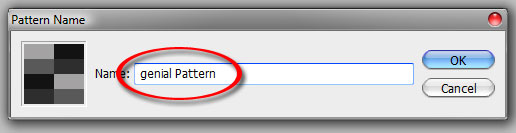
Go to menu Edit > Define Pattern.
Name it as shown below... GENIAL hahahhaha...
kidding..
name it as you wish..

then hit OK.


genial on Carbon Fiber Look


Third, The Final Step. Now you have made thee pattern.
You can now select the area you wish to make carbon fiber and then go
menu Edit > Fill > Pattern and
select GENIAL PATTERN :p or even yours,
hit OK again

and VIOLA! You have carbon fiber.


Here is a basic example of the pattern in effect.


genial on Carbon Fiber Look


Its quick, simple and easy to use !!!


It can be use for any other circumstances,
Diplacement Map for example... look the image below...


genial on Carbon Fiber Look